J-Trace PRO Cortex-M
This page contains the general, specifications as well as an overview of supported software features of the SEGGER J-Trace PRO Cortex-M.
For information on the mechanical and electrical specifications as well as an overview of hardware features refer to Hardware Models.
Hardware Models
Legacy
Hardware Features
| Feature | Supported | Since |
|---|---|---|
| USB 2.0 Hi-Speed |  |
V1 |
| USB 3.0 SuperSpeed | |
V2 |
| WinUSB | |
V2 |
| Gigabit-Ethernet | |
V1 |
| cJTAG interface | |
V2 |
| cJTAG interface without/buggy KEEPER logic | |
V2 |
| JTAG interface | |
V1 |
| SWD interface | |
V1 |
| SWO interface | |
V1 |
| ETB Trace Cortex-M | |
V1 |
| ETM Trace Cortex-M | |
V1 |
| Streaming Trace | |
V1 |
| VCOM |  |
|
| Memory Stop mode support | |
V1 |
| ARMv7-M Monitor Mode debugging | |
V1 |
| ARMv8-M Monitor Mode debugging | |
V3 |
| 5 V Target Supply | |
V2 |
| SWD Multi-Drop | |
V1 |
| CMSIS-DAP v1 (HID) mode | |
Supported cores
J-Trace provides debugging support for the following cores.
If you are interested in J-Trace support for a core that is not listed here, please feel free to request support via the SEGGER support ticket system.
| Core | Supported | Since |
|---|---|---|
| ARM Cortex Cores | ||
| Cortex-A53 | |
|
| Cortex-A55 | |
|
| Cortex-A57 | |
|
| Cortex-A72 | |
|
| Cortex-A76 | |
|
| Cortex-M0 | |
V1 |
| Cortex-M0+ | |
V1 |
| Cortex-M1 | |
V1 |
| Cortex-M3 | |
V1 |
| Cortex-M4 | |
V1 |
| Cortex-M7 | |
V1 |
| Cortex-M23 | |
V1 |
| Cortex-M33 | |
V1 |
| Cortex-M52 | |
V1 |
| Cortex-M55 | |
V1 |
| Cortex-M85 | |
V1 |
| SC000 (M0 secure) | |
V1 |
| SC300 (M3 secure) | |
V1 |
| RISC-V | ||
| RV32 | |
|
| RV64 | |
|
Known Issues
USB driver not found
Problem
J-Trace PRO V2 Cortex-M and J-Trace PRO V2 Cortex do not use the SEGGER USB driver like J-Links do, but they use WinUSB instead. WinUSB was distributed by Microsoft via Windows Update so in case a USB device needed WinUSB, Windows downloaded it automatically in the background, where necessary. However, Microsoft changed their policy for Windows Vista / Windows 7 and WinUSB is no longer distributed via Windows Update. This may now lead to "no USB driver found" like problems when connecting J-Trace PRO to a PC for the first time.
Affected Operating Systems
- Microsoft Windows 7
- Microsoft Windows Vista
Solution
The easiest way to solve the driver issue is to install the required drivers manually. Please find below a step-by-step instruction:
- Download the following archive: WinUSBDriverInstall.zip
- Execute the InstallDriver.exe
If there is still no WinUSB device detected in your device manager, but it is showing a J-Trace PRO under "unknown" or "other" devices section with a warning sign, the driver has to be set manually:
- For this, simply right-click the aforementioned entry.
- Select properties.
- Driver->Update Driver
- Click Browse my computer for driver software.
- Click Let me pick from a list [...]
- Go to section "Universal serial bus devices" and select WinUSB as driver.
After this the J-Trace PRO should show up correctly as a WinUSB device in your device manager and the USB LED on the J-Trace PRO should have stopped blinking.
Should the J-Trace PRO never show up in device manager in the first place, it is very likely that the USB3.0 controller on your mainboard has not been enabled yet. This can usually be done via the BIOS or UEFI during boot. For more information, we recommend consulting with your mainboard manufacturer.
If you still run into any issues, please contact SEGGER directly.
J-Trace detected as HP Printer BIDI
Problem
J-Trace PRO is incorrectly detected as an HP printer device. This is a problem with the HP BIDI printer driver and Windows 7 / Vista. The wrong driver is assigned to J-Trace, and it cannot be used with the J-Link/J-Trace software. This happens on PCs where the HP BIDI driver is installed before any J-Trace was ever connected to the PC. In order to fix this, the correct driver needs to be assigned to J-Trace manually. This only needs to be done once.
- Open the Windows device manager
- Open the USB devices tree. There should be an HP BIDI device shown, which is really a J-Trace. (Check if the device is removed from the list if J-Trace is disconnected to make sure the correct USB device is selected)
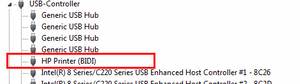
List J-Trace incorrectly - Right-click the USB device and click Properties
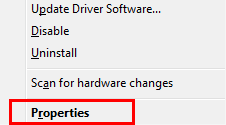
Properties - Go to the Driver tab and click Update Driver...
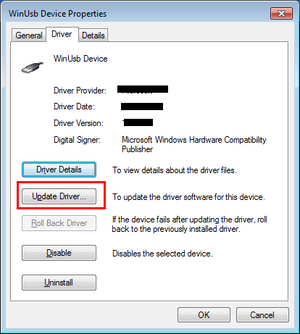
Update Driver - Click Browse my computer for driver software
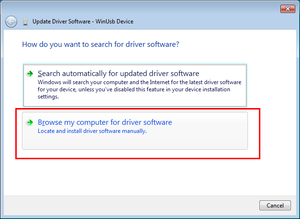
Browse Drivers - Click Let me pick from a list [...]
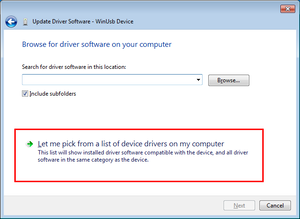
Pick driver from list - Select WinUsb Device and click Next
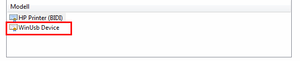
Select WinUSB - Windows will show that the new driver has been assigned successfully
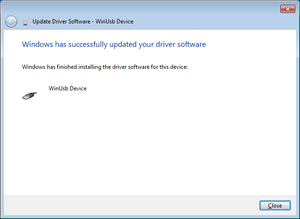
New driver applied - Check that J-Trace is now correctly listed as WinUSB device
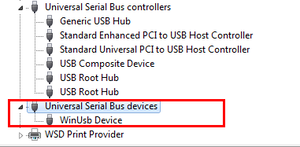
List J-Trace correctly


Affected Operating Systems
- Microsoft Windows 7
- Microsoft Windows Vista
If you still run into any issues, please contact SEGGER directly.